1. Simulator Environment Setup#
1.1. Installing ROS2 and required tools#
Refer to the following link to install ROS2.
humble : https://docs.ros.org/en/humble/Installation/Ubuntu-Install-Debs.html
jazzy : https://docs.ros.org/en/jazzy/Installation/Ubuntu-Install-Debs.html
Additionally, install the necessary tools.
$ sudo apt update
$ sudo apt install -y python3-colcon-common-extensions python3-rosdep
$ sudo rosdep init
$ rosdep update
1.2. Create Workspace for Simulation#
Create a workspace and retrieve the necessary packages.
Wherever you see <ROS_DISTRO> below, please enter the name of the distribution you are using (humble or jazzy).
$ source /opt/ros/<ROS_DISTRO>/setup.bash
$ mkdir -p ~/hsr_ros2_ws/src && cd ~/hsr_ros2_ws/src
$ git clone -b $ROS_DISTRO https://github.com/hsr-project/hsrb_controllers.git
$ git clone -b $ROS_DISTRO https://github.com/hsr-project/hsrb_common.git
$ git clone -b $ROS_DISTRO https://github.com/hsr-project/hsrb_drivers.git
$ git clone -b $ROS_DISTRO https://github.com/hsr-project/hsrb_launch.git
$ git clone -b $ROS_DISTRO https://github.com/hsr-project/hsrb_manipulation.git
$ git clone -b $ROS_DISTRO https://github.com/hsr-project/hsrb_rosnav.git
$ git clone -b $ROS_DISTRO https://github.com/hsr-project/hsrb_simulator.git
$ git clone -b $ROS_DISTRO https://github.com/hsr-project/hsr_common.git
$ git clone -b $ROS_DISTRO https://github.com/hsr-project/hsrb_teleop.git
$ git clone -b $ROS_DISTRO https://github.com/hsr-project/tmc_gazebo.git
$ git clone -b $ROS_DISTRO https://github.com/hsr-project/tmc_teleop.git
$ git clone -b $ROS_DISTRO https://github.com/hsr-project/tmc_common.git
$ git clone -b $ROS_DISTRO https://github.com/hsr-project/tmc_common_msgs.git
$ git clone -b $ROS_DISTRO https://github.com/hsr-project/tmc_drivers.git
$ git clone -b $ROS_DISTRO https://github.com/hsr-project/tmc_database.git
$ git clone -b $ROS_DISTRO https://github.com/hsr-project/tmc_manipulation.git
$ git clone -b $ROS_DISTRO https://github.com/hsr-project/tmc_manipulation_base.git
$ git clone -b $ROS_DISTRO https://github.com/hsr-project/tmc_manipulation_planner.git
$ git clone -b $ROS_DISTRO https://github.com/hsr-project/tmc_point_cloud.git
$ git clone -b $ROS_DISTRO https://github.com/hsr-project/tmc_realtime_control.git
$ git clone -b $ROS_DISTRO https://github.com/hsr-project/tmc_voice.git
$ git clone -b $ROS_DISTRO https://github.com/hsr-project/tmc_navigation.git
$ rm -rf hsrb_launch/hsrb_robot_launch
$ rm -rf hsrb_simulator/hsrb_rviz_simulator
$ rm -rf tmc_drivers/tmc_pgr_camera
Build the workspace.
$ cd ~/hsr_ros2_ws/
$ rosdep install --from-paths . -y --ignore-src
$ colcon build --symlink-install --cmake-args -DCMAKE_BUILD_TYPE=Release
$ source install/setup.bash
1.3. Simulator Verification#
In the workspace created in the previous section , run the following to verify the simulator.
Change
ROS_DOMAIN_ID=XXXaccordingly.$ ros2 daemon stop $ export ROS_DOMAIN_ID=XXX $ source /opt/ros/<ROS_DISTRO>/setup.bash
$ cd ~/hsr_ros2_ws/
$ source install/setup.bash
$ ros2 launch hsrb_gazebo_launch hsrb_apartment_no_objects_world.launch.py
After running
ros2 launch hsrb_gazebo_launch, press the “Tab” key twice to view other launch files.Select the appropriate one based on HSR and world you wish to use.
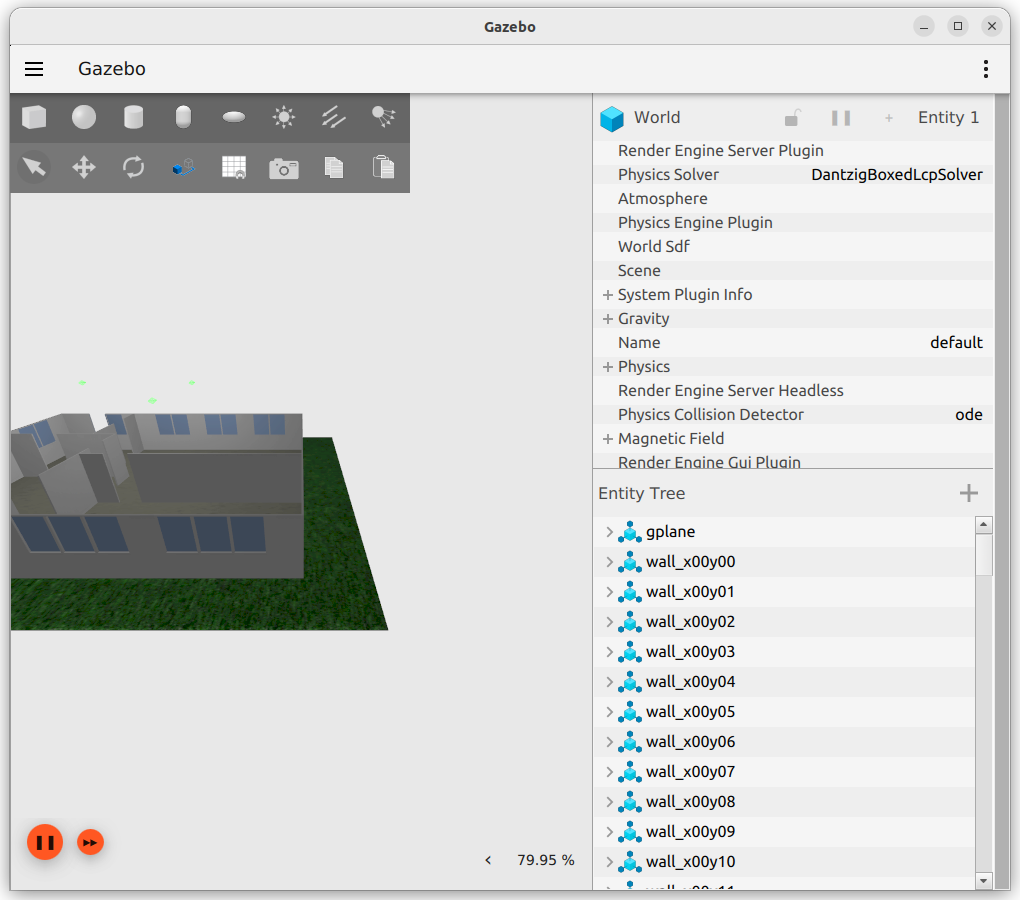
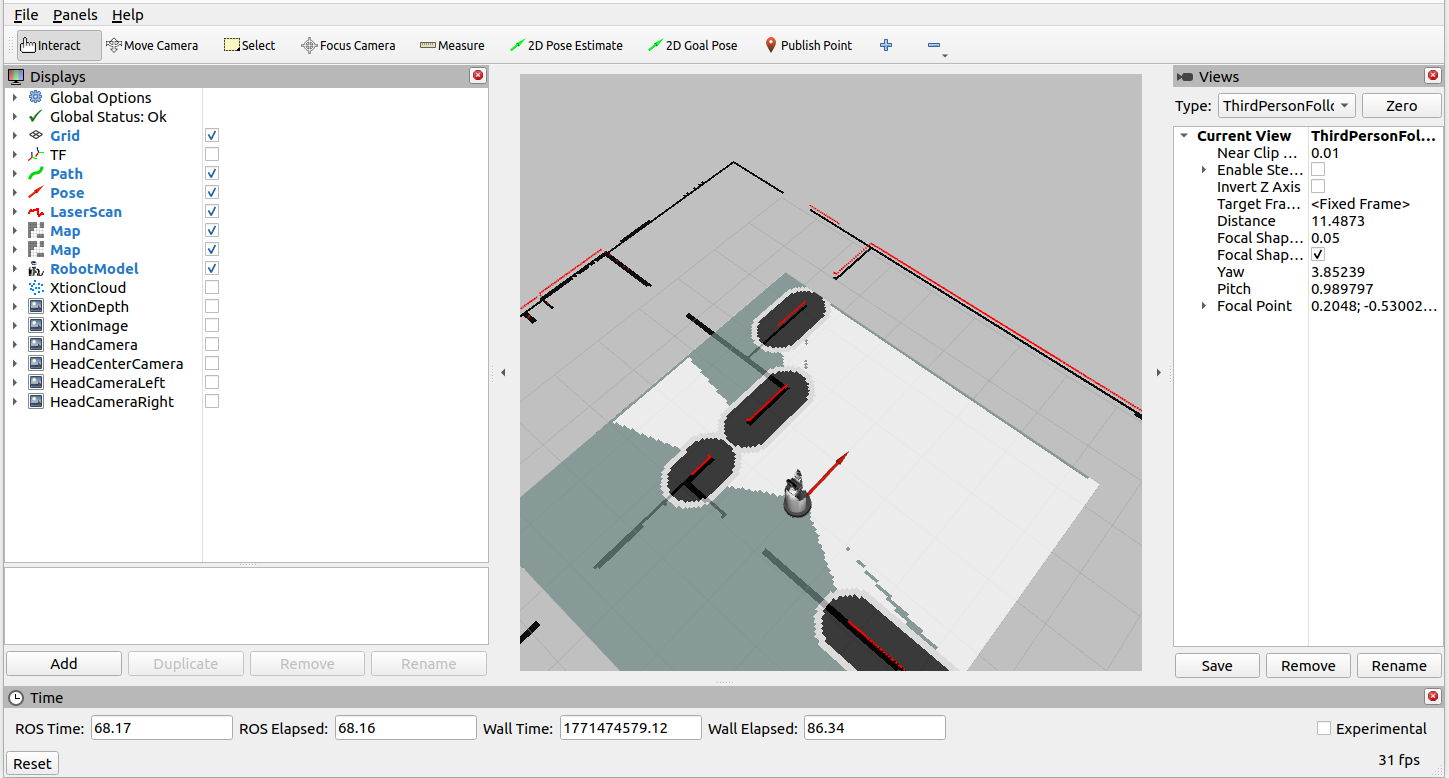
Once you can see the two windows for Gazebo and RViz as shown below, the simulator setup is complete.
To exit the simulator, press “Ctrl”+”C” key in the terminal where you launched the simulator.
Gazebo
RViz
Note
Depending on your PC’s specifications, the initial launch of Gazebo may take some time.
In that case, run the following command to isolate the issue.
$ cd ~/hsr_ros2_ws/
$ source install/setup.bash
$ ros2 launch hsrb_gazebo_launch hsrb_empty_world.launch.py
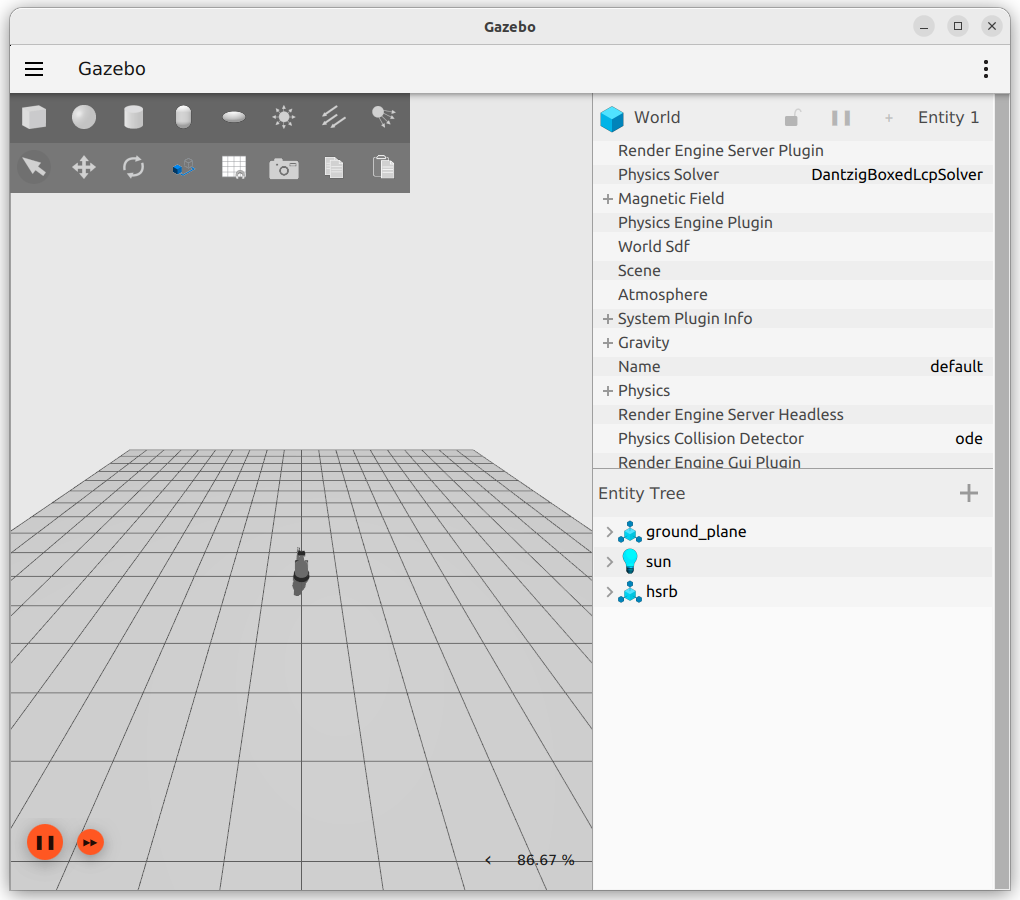
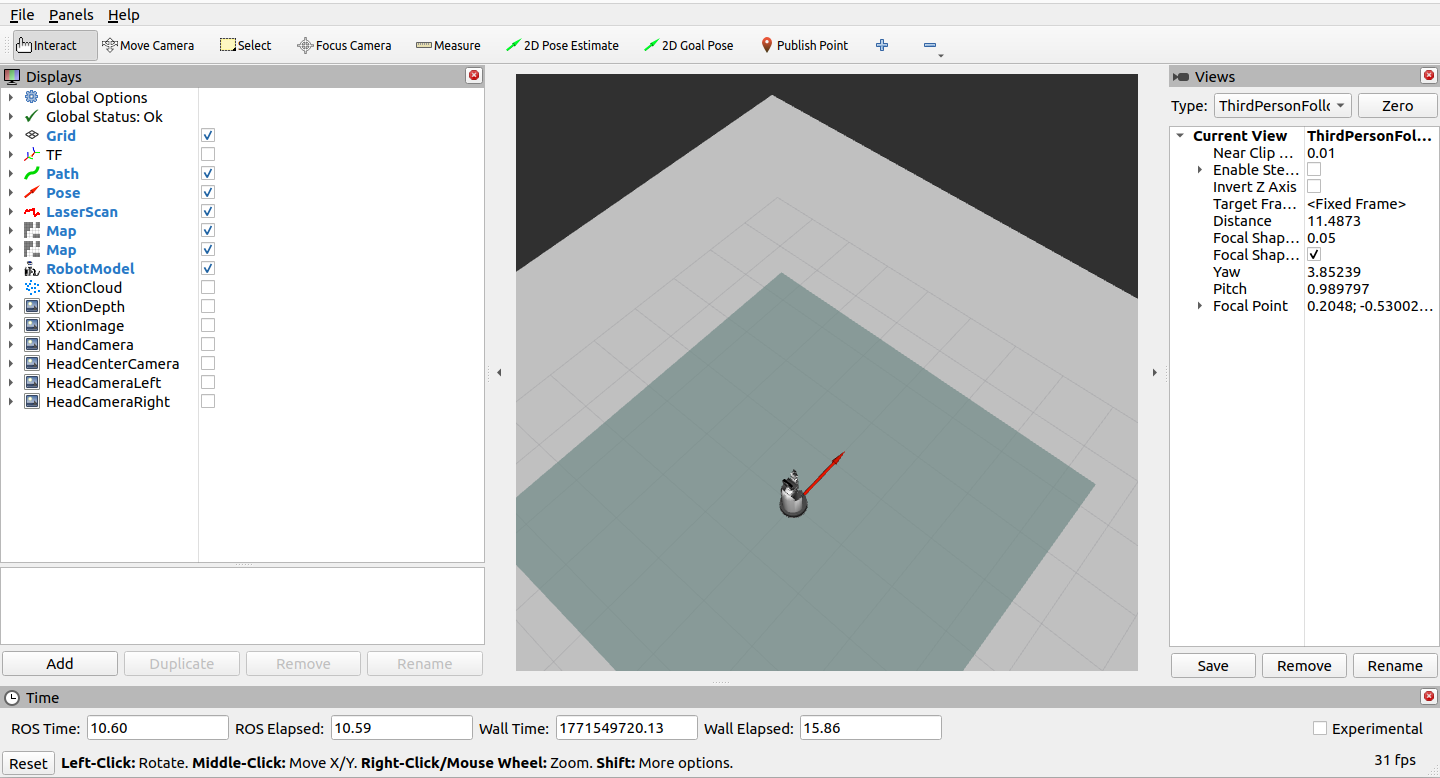
If the two windows for Gazebo and RViz appear as shown below, the system has started up correctly.
In this case, it is highly likely that the initial startup process simply took longer than usual.
Gazebo
RViz
If Gazebo and RViz do not display as shown in Figure 1, wait for about 10 minutes.
If it still does not appear, the PC may not meet the necessary specifications for operation.