5.1. The Simulator#
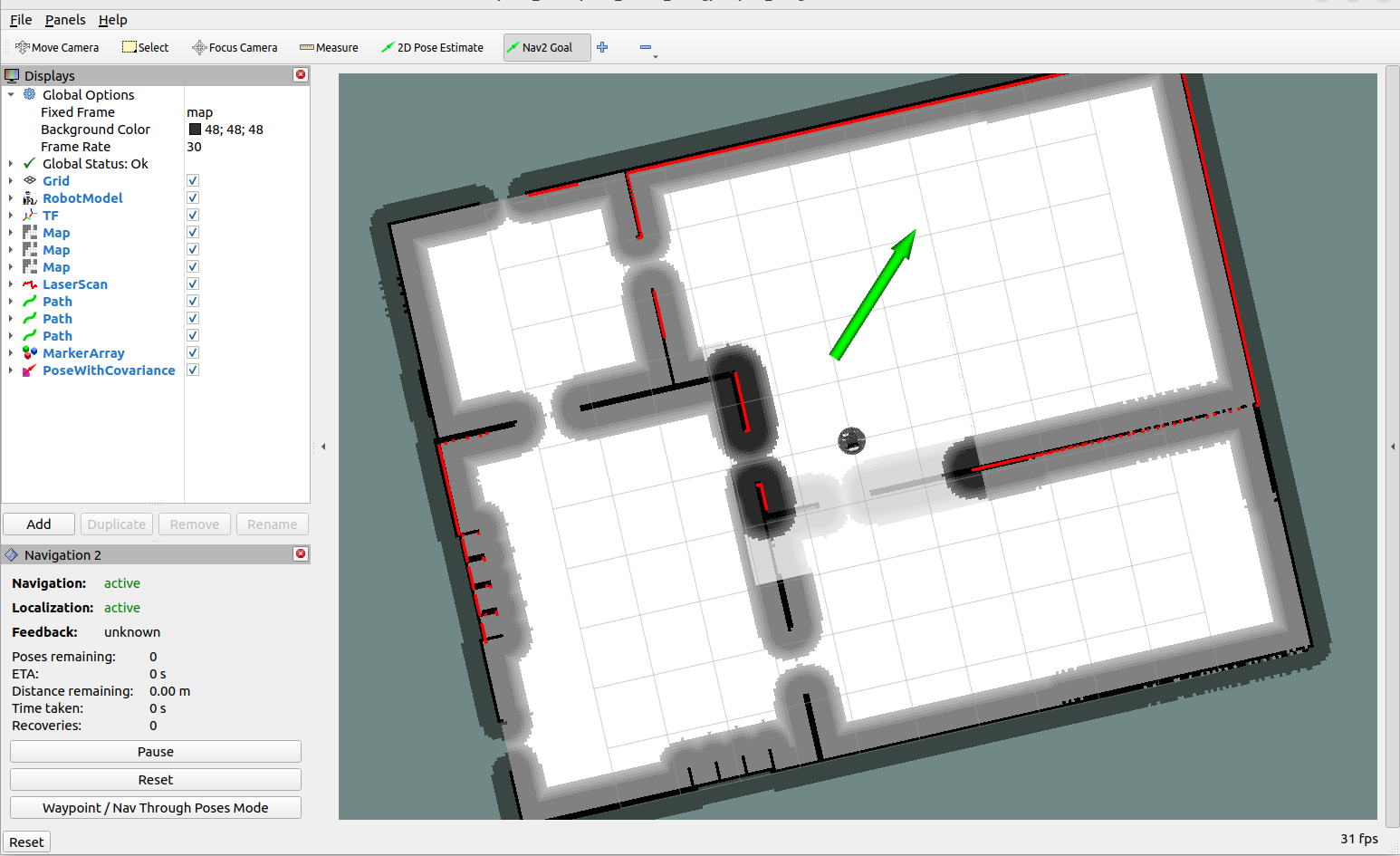
You can move HSR in the simulator using the Nav2 Goal tool in RViz. Follow the steps below.
Run the following commands to configure the environment variables. Set the
ROS_DOMAIN_IDvalue yourself. Note that you must configure these settings in the same way in any terminal you open from this point forward.$ export ROS_DOMAIN_ID=XXX $ source /opt/ros/<ROS_DISTRO>/setup.bash
Run the following commands to launch Gazebo.
$ cd ~/hsr_ros2_ws/
$ source install/setup.bash
$ ros2 launch hsrb_gazebo_launch hsrb_apartment_no_objects_world.launch.py use_navigation:=false rviz:=false
Run the following commands to launch navigation.
$ cd ~/hsr_ros2_ws/
$ source install/setup.bash
$ ros2 launch hsrb_rosnav_config navigation_launch.py map:=src/tmc_database/tmc_potential_maps/maps/apartment/map.yaml use_sim_time:=true initial_orientation_xyzw:=[0,0,0,1]
Run the following commands to launch RViz.
$ cd ~/hsr_ros2_ws/
$ source install/setup.bash
$ rviz2 -d src/hsrb_rosnav/hsrb_rosnav_config/rviz/hsr_navigation2.rviz
Once launched, you will see an RViz screen like the one below.
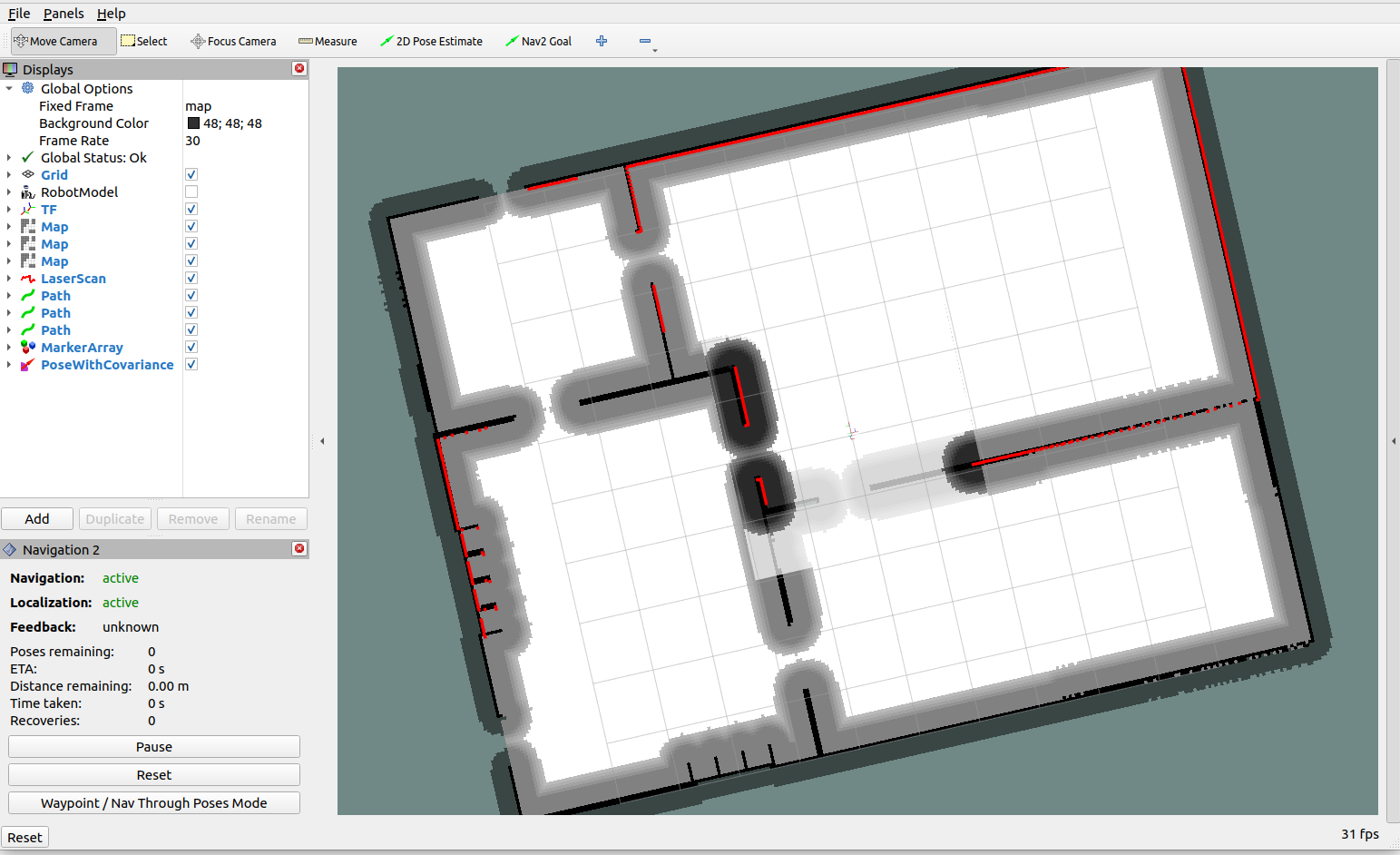
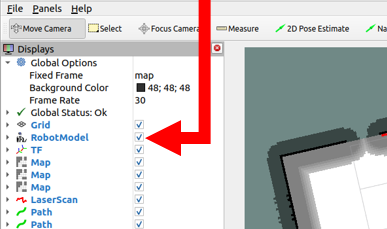
If you check the “RobotModel” box, HSR will be displayed.
Select
Nav2 Goalat the top center of the RViz screen.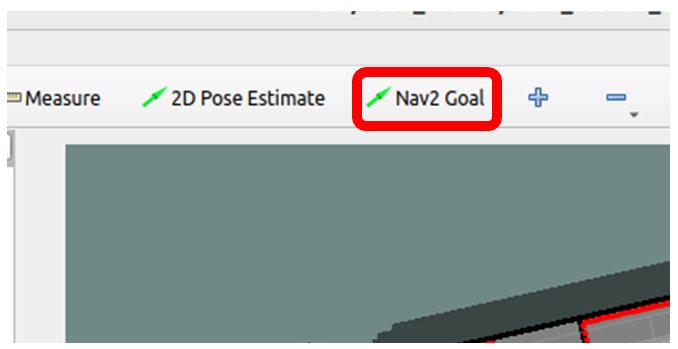
Click on the target location and drag it in the desired direction. A green arrow will appear on the screen, and HSR in the simulator will move to that position.